The web app#
Everything about your display is managed from a web page the player serves itself: open http://opendmd.local/ on any phone, tablet or computer on the same WiFi. There is nothing to install.
On a computer the views are listed down the left side; on a phone they are along the bottom: Now, Library, Playlists, Formulas, Create Art and Settings (on a small phone, Create Art is just Create).
Want to look around first? The demo is the same app running in your browser, with a few sample animations.
Now#
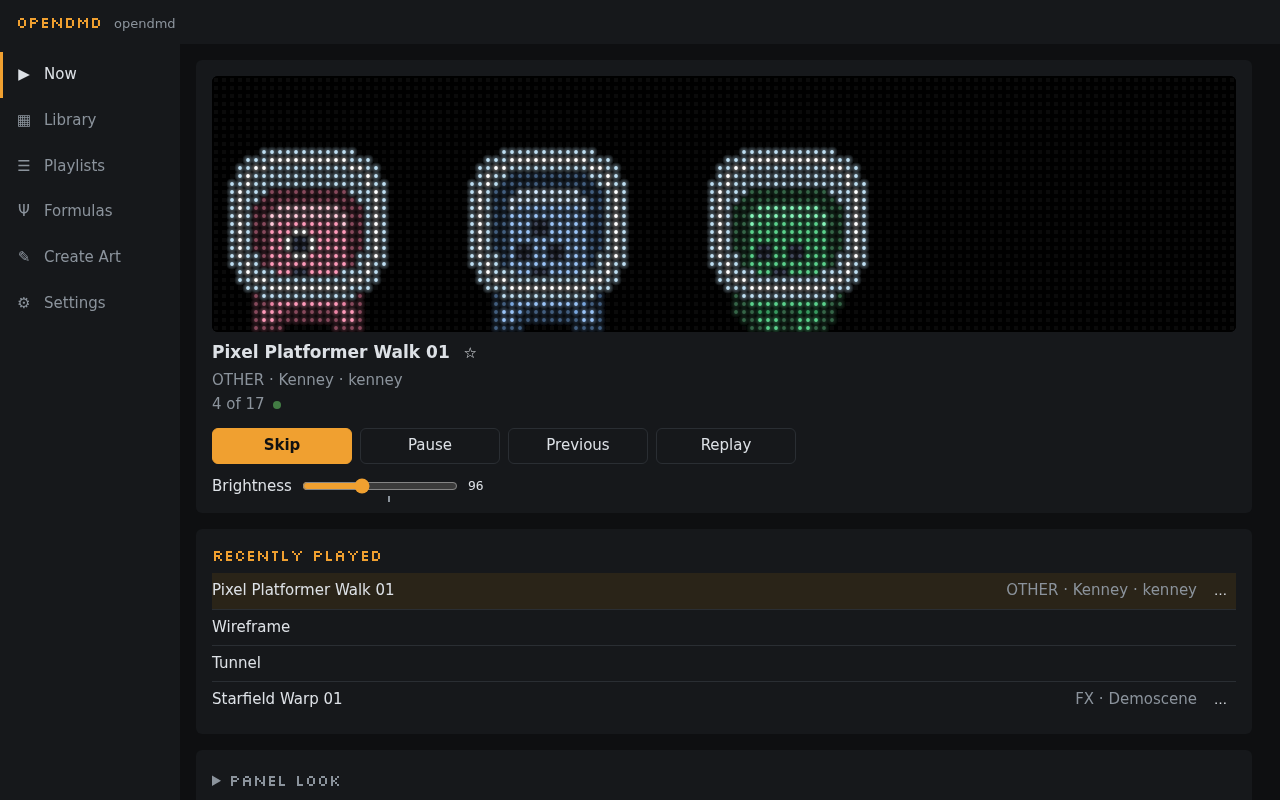
What the panel is showing right now: the title, its platform and category, where it is in the playlist ("14 of 10,162"), and a moving preview of it drawn the way the LEDs look. Use it as a remote: Skip to the next GIF, Pause and Resume, and drag the brightness slider. (Don't want the preview? Turn off Mirror the panel on Now in Settings › Look.)
Missed something? Recently played under the preview lists what the panel showed last, even while no page was open: tap one to play it again. Replay restarts what is on now, and Previous steps back one at a time.
Like what's on? Tap ☆ next to the title to make it a favourite in the playlist that's playing (it turns to ★; tap again to undo). The message that pops up names the playlist. The … on a Recently played GIF has the rest: play less often, hide, play longer. Clocks, text and Formulas have no ☆.
When a schedule or night mode is in charge, Now says so, and Wake for an hour brings the panel back for a while.
When there's nothing to play, Now says why instead: no card, an empty playlist, or a platform filter that matches none of the playlist's GIFs (with a Clear filter button).
Library#
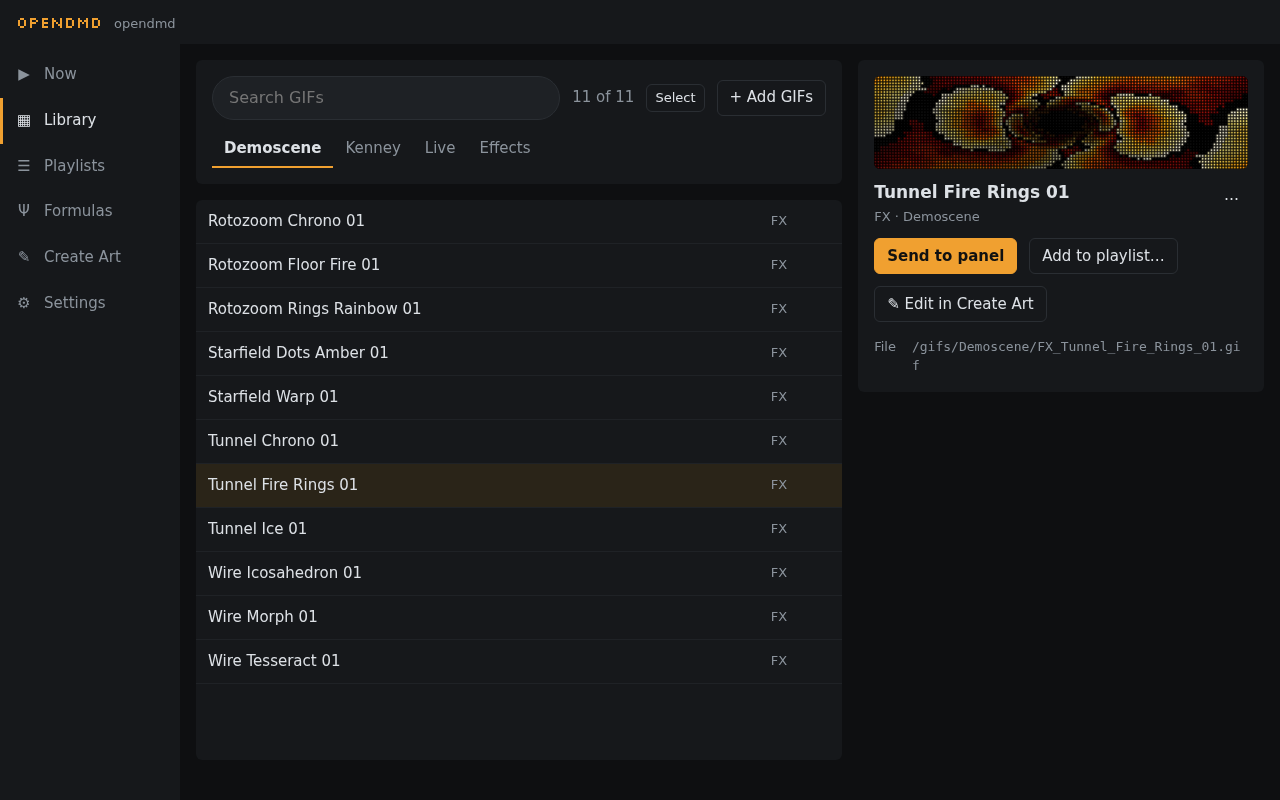
Every GIF on your card, by folder: the folders on your card (Arcade, Consoles, and so on), then Live, with how many items it holds. Click a folder to open it, again to close it; ⊟ closes them all. Big folders scroll smoothly however many GIFs they hold. Each GIF has a small picture of its first frame; rest the pointer on one (or move to it with the keyboard) and it plays a moment of it. The chips at the top narrow the list by platform.
Search looks through every GIF on the card. Only the folders with matches stay, opened, each saying how many it has; the chips show the platforms of the matches, say SNES 17: tap one to narrow the results, tap it again to undo. Clear the box to go back to the folders as they were.
With a keyboard: ↑ and ↓ move, → opens a folder (or steps into it), ← closes it (or steps back out), Enter opens a folder or a GIF.
Click a GIF to open its details: a preview, its title, platform, category and author, and what you can do with it:
- Send to panel plays it now; afterwards the playlist carries on.
- Add to playlist… puts it in a playlist.
- Edit in Create Art opens it in Create Art to change it.
- Edit details… changes its title, platform, category or author. The GIF is renamed on the card and every playlist keeps up.
- Delete… removes it from the card and from every playlist, after asking first.
Several at once. Press Select (or long-press a GIF on a phone): tick boxes appear, a tap picks a GIF, a folder's box picks every GIF in it, and Add to playlist puts them all in the playlist you're editing. Done leaves Select.
Adding GIFs. Press + Add GIFs and pick files from your computer or phone. For each one, give it a title, a platform, a category (or a new one) and, if you like, an author. The app suggests a title from the file name and shows the name the GIF will get on the card. Afterwards it offers to add the new GIFs to the playlist that's playing. Each GIF also gets a lighter copy for smooth playback, made as it uploads; you don't need to do anything.
Smooth motion. Some GIFs scroll or move in jumpy steps of a few pixels. When the app spots one, a Smooth motion switch appears under its preview. Turn it on and the panel fills in the in-between steps so it glides instead. Your GIF file isn't changed, and you can switch it off again any time.
Live is an extra folder with two things the panel draws by itself. Preview them, send them to the panel, or add them to any playlist, just like a GIF:
- Clock: the time, in one of four layouts, with the date and seconds if you want them. The player keeps its own time over the internet; set your time zone in Settings → Schedule → Time.
- Scrolling text: type a message ("Game over", "Insert coin") and choose its font, colour and speed.
Follow RePlayOS can show the clock or a text in the menus instead of a playlist (Settings → Schedule → Follow RePlayOS → attract playlist). To show a Formula there, make a playlist of it and choose that playlist.
The classic demo-scene animations (a tunnel, Mode 7 rotozoom, a starfield, a spinning cube) are Formulas now, in their own view.
Playlists#
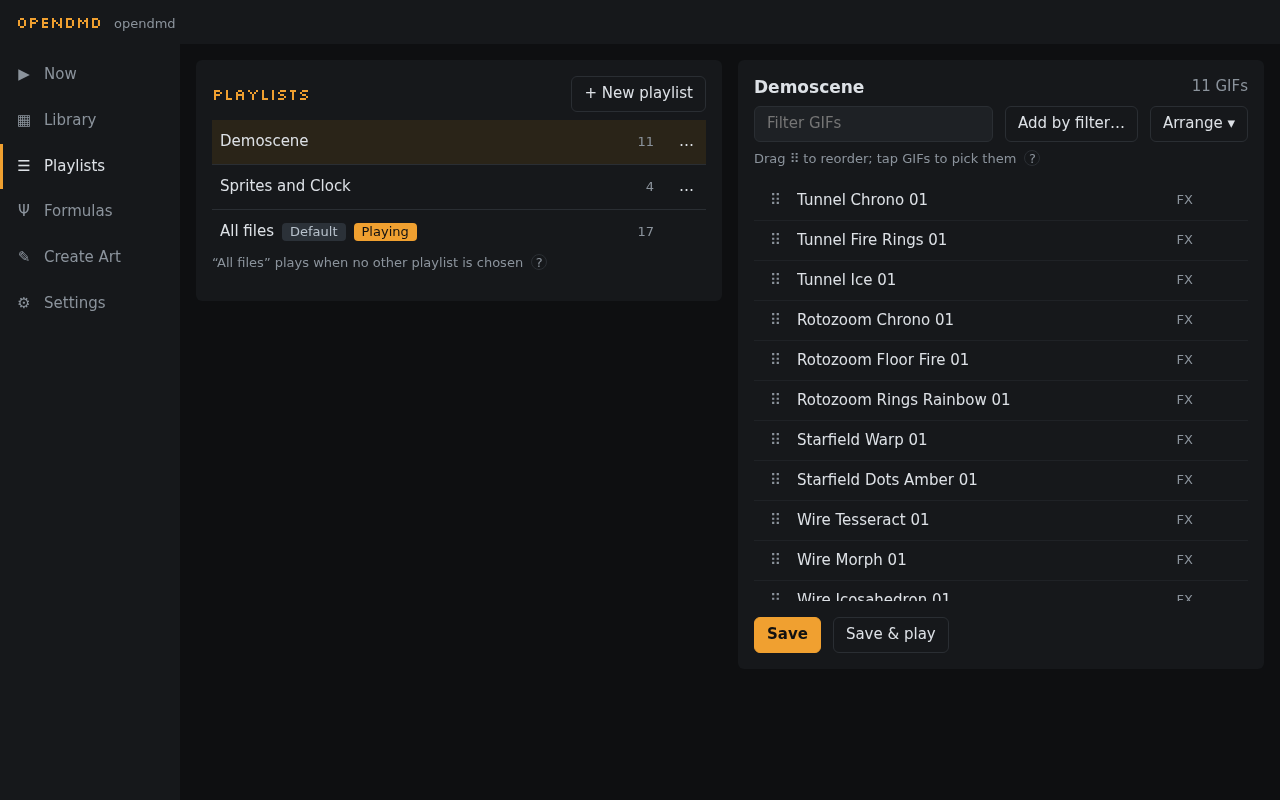
A playlist is the set of GIFs the panel cycles through. All files is the default and plays everything listed on your card; Halloween and Christmas appear too if your card has those lists.
Tap a playlist to open it. On a computer it opens beside the list; on a phone it takes the whole screen, and ‹ Playlists goes back.
- Make one: press + New playlist and give it a name. Then + Add GIFs shows your folders beside the playlist (on a phone, in its place; Done goes back): tick GIFs, or a whole folder, and press Add 12 ticked. Or search, say "mario" with the SNES chip, and press Add all 41 shown. A GIF already in the playlist has a ✓ and isn't added twice. Add by filter… fills it by rules instead: platforms, categories and title words (Leave out drops logos, intros and the like), shuffled or cut to a number if you like. Or pick GIFs in the Library and choose Add to playlist… → New playlist….
- Edit one: open it; every GIF shows its first frame. Drag the ⠿ handles to reorder, ✕ to remove one, or pick GIFs and use Arrange to move or remove them, then Save. The ones that come with your card (All files, Halloween, Christmas) are saved as a copy under a name of your own.
- Switch to one: Save & play while editing, or Play from a playlist's … menu. The panel switches over in a few seconds.
Favourites and hiding#
Right-click a GIF in the Library or a playlist (or use its … button; on a phone, long-press in a playlist) to tune how it plays in that playlist:
- Favourite: plays more often.
- Play less often.
- Hide from this playlist: never plays there.
- Play longer or loop…: stays on screen twice as long or for a number of seconds, or plays a set number of times.
These are per playlist, so a GIF can be a favourite in one and hidden in another. Reset puts it back to normal. On Now, the ☆ next to the title makes the GIF on screen a favourite in the playlist that's playing.
Formulas#
A few lines of maths that draw on the panel, with examples to remix, a live editor, share links and Save as GIF. See Formulas.
Settings#
Settings has four tabs, and everything saves as you change it (a green Saved ✓ says so):
- Playback: brightness, and under it Maximum brightness, a ceiling for the brightness slider (going above the suggested level can make the display reset on the power supply it came with, so only raise it if you've fitted a stronger one); which playlist plays, Platforms and Shuffle, and how long each GIF stays on (3 to 30 seconds, say). Platforms says All with how many there are; Choose… lists them with how many GIFs each has (the rare ones behind +N more, and a box to find one): tap the ones you want and press Only these, or All platforms.
- Look: Colour, to show everything in full colour or in a single colour like a classic dot-matrix display (amber, red, green, blue or white); Phosphor glow, which makes dots fade out softly like an old plasma display; Mirror the panel on Now, the preview on Now (this browser only); the Transition from one GIF to the next (dissolve, wipe, blinds, push, fade or none) and how fast; and the Start-up show the panel plays when it powers on.
- Schedule:
- Time sets your time zone, for the clock and schedules.
- Schedule picks a playlist or brightness for certain days and times ("weekday evenings: Consoles"). The first rule that matches wins, and your normal settings come back when it ends.
- Night mode turns the panel off, or dims it, every night between the times you choose.
- Follow RePlayOS links the display to a RePlayOS gaming box: when you start a game, the panel shows the console's logo, a title card and art for that game; in the menus it plays a playlist of your choice. Turn on NET CONTROL on the box, then enter its address and code here and press Test.
- Device:
- Status: the playlist and how many GIFs it has, the card, how long the player has been running, its memory, and late frames (frames the panel showed late enough to see). Reload playlist reads the card again if you changed it in a computer; Reboot restarts the player.
- Playback cache shows how many GIFs are ready to play at their smoothest. The player gets them ready by itself while the panel is dark at night (Night mode under Schedule) or the player is paused; Also while playing lets it do a little more while it plays, slowly. Prepare remaining files does the rest now from your browser.
- Network changes the WiFi network or the Display name (
opendmdinopendmd.local). Give each display its own name if you have more than one; a name another display on your network already answers to is refused, and nothing is saved. A WiFi change needs a reboot; a new name works straight away: Settings shows the display's new address and, if you opened the web app by its old.localname (which stops working), a link to the new one. About shows the address the display really has: if another display already had its name, it's<name>-2.localand About says so. Its API reference link opens, on the OpenDMD site, the HTTP API for the display's firmware version, for scripts and home automation. - Panel timing is for a panel that shows a few wrong-coloured dots on some pictures: Test panel timing shows test pictures under A and B and saves the one you pick; a change by hand is tried for a minute and undone unless you press Keep (see Troubleshooting).
- Firmware shows the version and installs updates (see Updating).
- Security can require a key before the player can be controlled, for shared networks. The web app asks for it once.
On a phone#
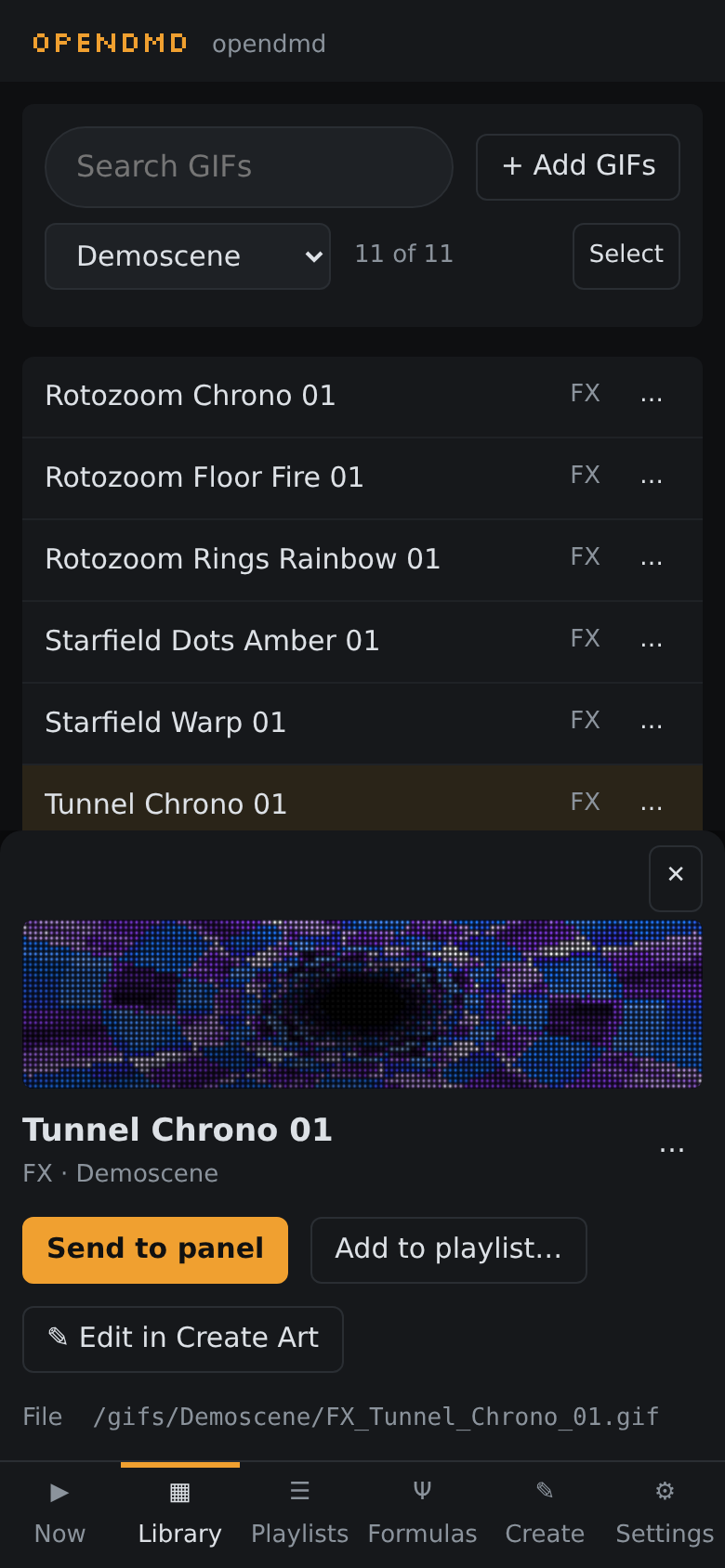
Everything works on a phone too. The details of a GIF slide up from the bottom, a playlist opens as a screen of its own (and its + Add GIFs takes the whole screen until Done), and long-press replaces right-click (in the Library, long-press starts Select).
Thumbnails are on unless you switch them off (Settings → Device → Thumbnails in the Library and playlists). Each GIF's picture is fetched once and kept by your browser, so they cost the panel next to nothing.